Video teleprompter
Read the script.
Keep the eye contact.
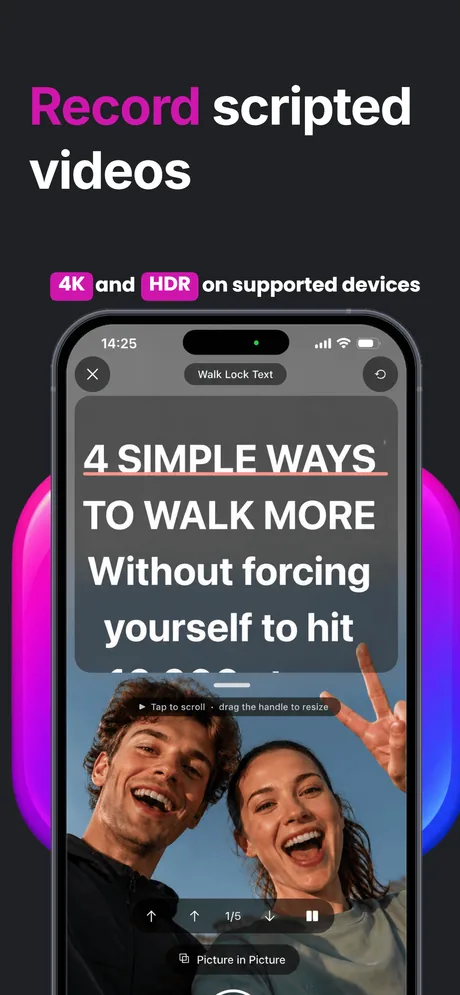
Your words scroll over the live camera, right beside the lens. One take instead of fourteen — then trim, crop and caption the clip before you ever leave the app.
- The script sits on top of the live camera
- 4K and HDR on supported devices
- Trim, crop and captions built in
The real problem
Notes propped beside the lens always look like notes propped beside the lens.
You know exactly what you want to say. Then the camera turns on, your eyes slide to the phone next to it, and take fourteen still sounds like someone reading out loud.
The glance gives you away
Every look away from the lens reads as hesitation on camera, and no amount of editing puts the eye contact back afterwards.
The takes pile up
One forgotten line means starting the whole clip again. An hour later there are twenty files on the phone and still no video.
And it is only half finished
Then the clip moves to a second app to be trimmed, a third to be cropped and a fourth to get captions.
How it works
Script in, finished clip out.
Four steps, one app, no exporting back and forth between them.
- 1
Paste your script
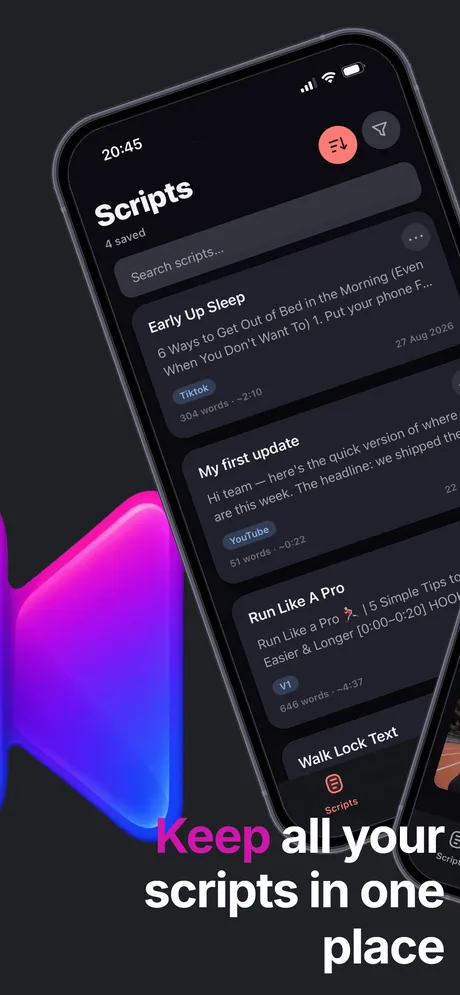
Drop the text in and TeleCue saves it with a tag, a word count and an estimated read time, so you know the clip length before you record it.
- 2
Record and read
The script scrolls over the live camera. Set the speed, resize the panel, tap to pause — your eyes never leave the lens.
- 3
Trim and crop
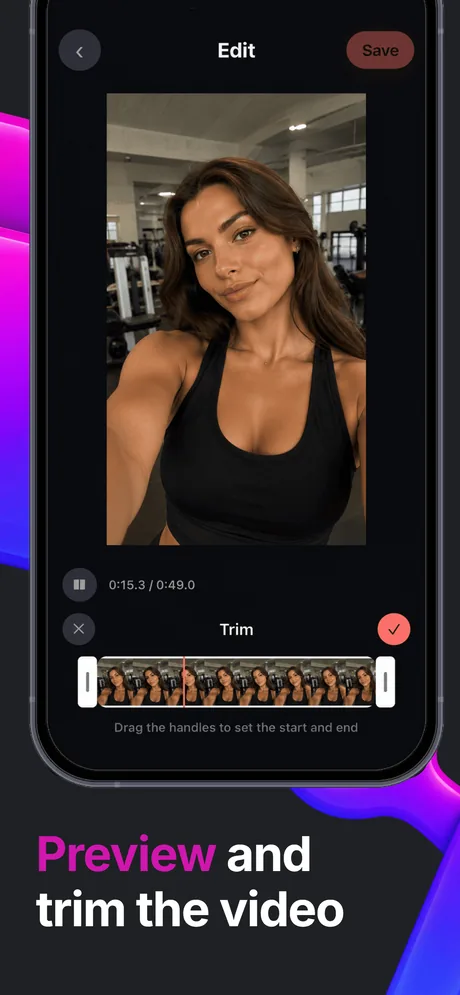
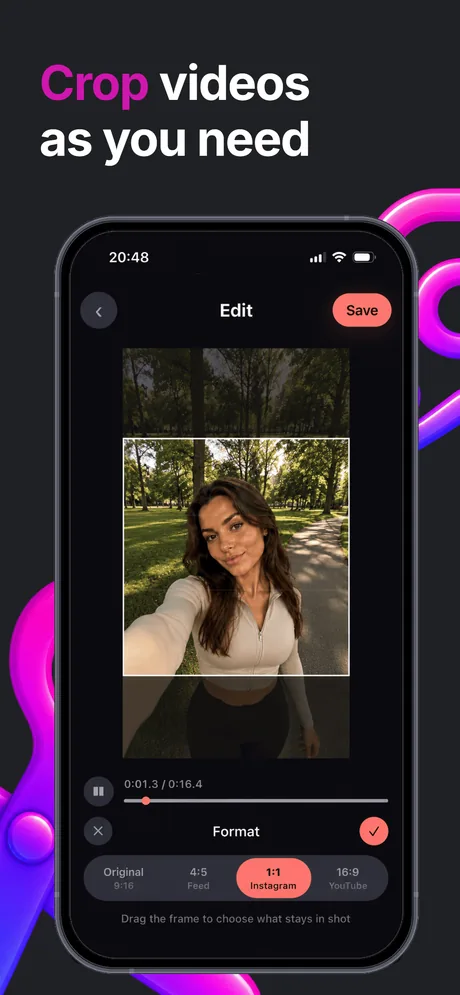
Play the take back, drag the handles to set the start and end, then pick 9:16, 4:5, 1:1 or 16:9 and frame what stays in shot.
- 4
Caption and share
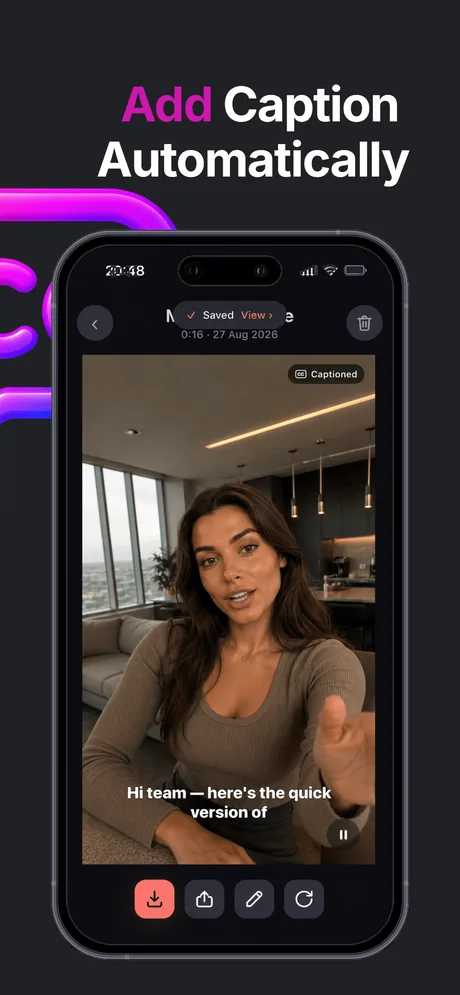
Captions are added for you. Save the result to Photos or send it straight to the app you post from.
While you record
The words go where the lens is.
The teleprompter panel sits on top of the camera preview instead of beside it. Drag its handle to make it taller or shorter, tap to start and stop the scroll, and use the arrows to jump back a line when you fumble one.
- Scroll speed and text size you can change mid-take
- Tap to pause the scroll, arrows to step back a line
- Picture in Picture keeps the script up while you switch apps
- 4K and HDR capture on supported devices
- Front or back camera, portrait or landscape
What you get
Everything between the idea and the upload.
Teleprompter over the camera
The script scrolls in a panel on top of the preview, so reading it and looking at the lens are the same thing.
A script library
Every script in one searchable list, with tags like TikTok or YouTube, word counts and read-time estimates.
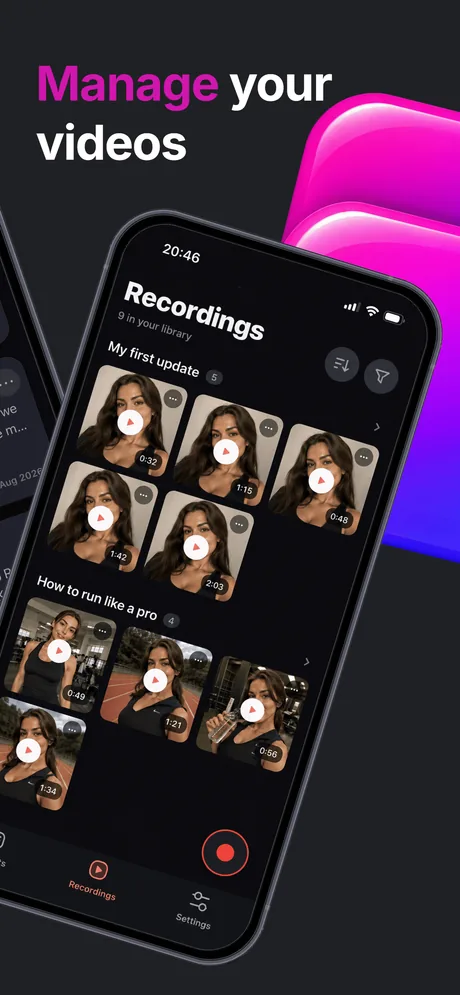
Takes grouped by script
Recordings sit under the script they belong to, so version three is never lost among nine other files.
Trimming in the app
Scrub through the take and drag the handles to cut the dead air off the front and the back.
Crop for any feed
Original 9:16, 4:5 for the feed, 1:1 for Instagram or 16:9 for YouTube — drag the frame to choose what stays in shot.
Automatic captions
Captions are generated and burned into the clip, so it still lands with the sound switched off.
4K and HDR
Records at the best quality your device supports rather than at a downscaled preview resolution.
Picture in Picture
Keep the script floating above the screen while you check the shot or step into another app.
Inside the app
Six screens, start to finish.
Questions
Before you download.
No. The teleprompter panel is drawn over the camera preview for you alone — the recording contains only the picture and the sound.
Yes. Speed and text size are adjustable mid-take, you can tap to pause the scroll, and the arrows step back a line if you fumble one.
On devices that support it, yes — 4K and HDR. On older hardware TeleCue records at the highest quality that device offers.
No. Scripts and recordings live on your device, and TeleCue works without signing up for anything.
Original 9:16, 4:5 for the feed, 1:1 for Instagram and 16:9 for YouTube. Drag the frame to choose what stays in shot.
Yes. TeleCue transcribes the take and burns the captions into the clip, so it still reads with the sound off.
Save them to your Photos library, or share them straight to the app you post from.
Not yet. TeleCue starts on iPhone; the Android build is in progress.
Support
Something not working?
Send us your device model and iOS version and a person will get back to you.
rino.games.socials@gmail.com
Stop reading from beside the lens.
Put the script where the camera is, and get the take you wanted on the first try.